
ウィジェットで残高確認 Your balance in a widget
ホーム画面から、あと使える金額を確認。 See what’s left to spend from your Home Screen.
iPhone & Apple Watch の予算管理アプリ Budgeting for iPhone & Apple Watch
予算を決めて、使った分を引いていく。
Set a budget. Subtract what you spend.
お財布をのぞくように、
Just like checking your wallet,
「あと使えるお金」がわかります。
see how much you have left to spend.
基本機能無料・アプリ内課金あり
Free core features · In-app purchases
iOS 26以降 / watchOS 26以降
iOS 26 or later / watchOS 26 or later
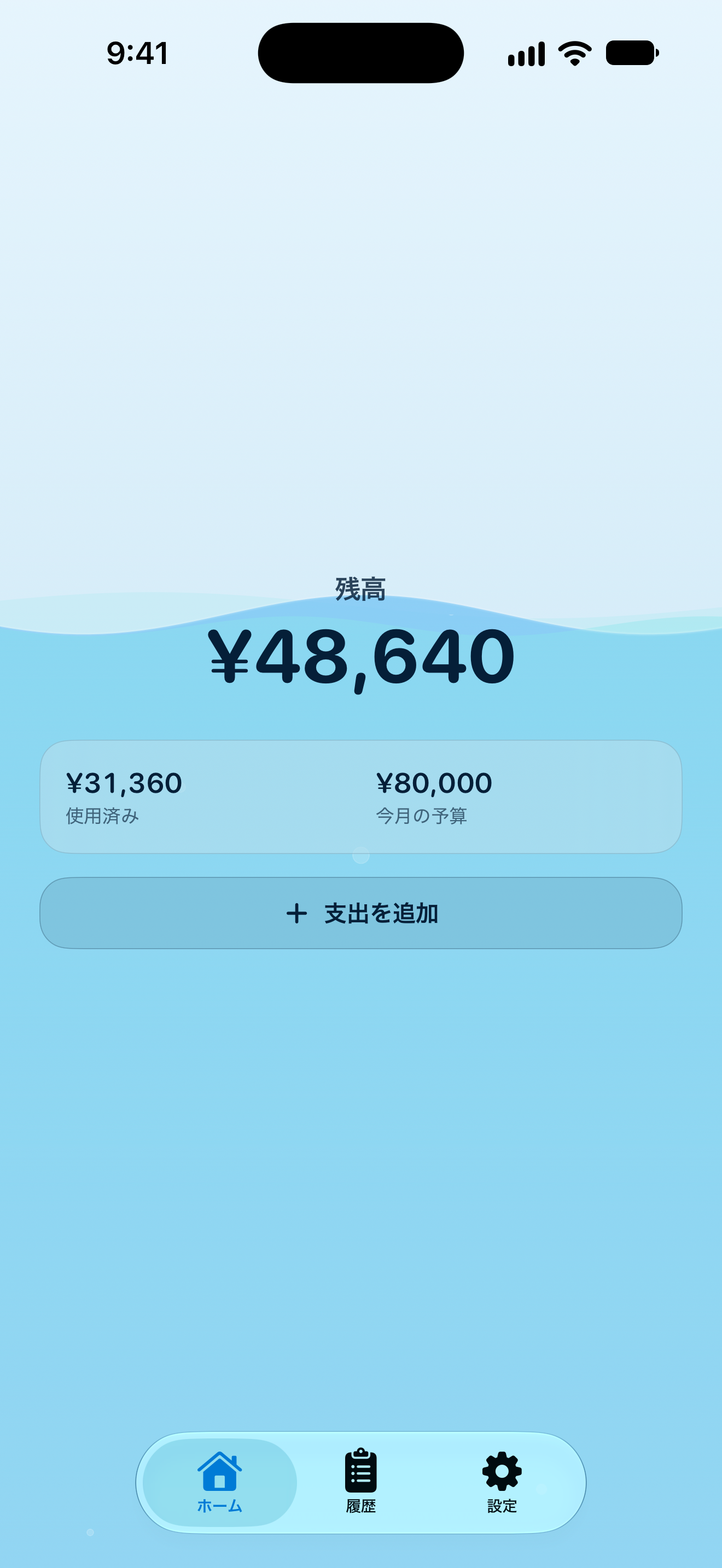
かんたん入力 Quick expense entry
使った金額を入力して「追加」。カテゴリやメモは、必要なときだけ。入力中にも、残りの予算を確認できます。 Enter what you spent and tap Add. Include a category or note only when you need one. See your remaining budget as you type.
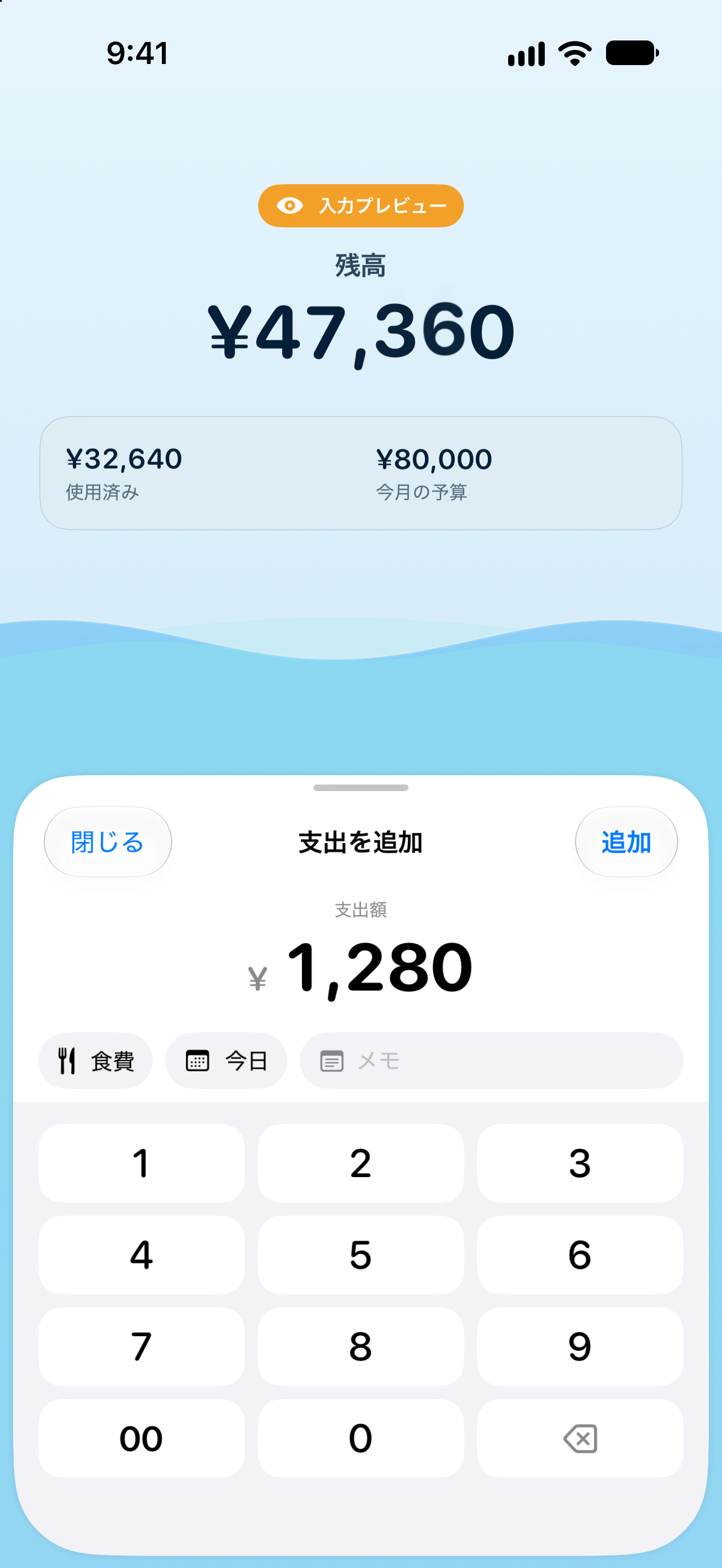
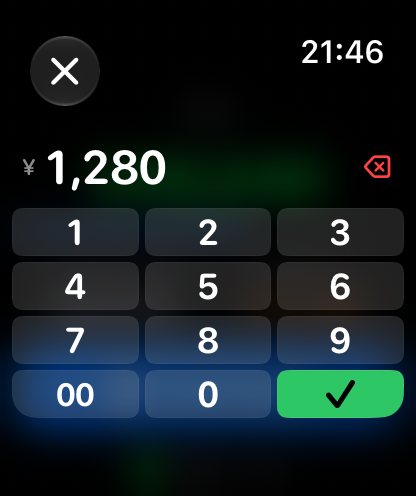
Apple Watch対応 Works with Apple Watch
Watchのテンキーで、金額を入力。記録した支出は、iPhoneにも同期されます。 Enter the amount using the keypad on your Watch. Your expense syncs to your iPhone, too.
iPhoneと離れている間もWatchに保存。接続が戻ると同期します。ペアリングしたiPhoneが必要です。 Away from your iPhone? Your Watch saves entries and syncs when it reconnects. A paired iPhone is required.
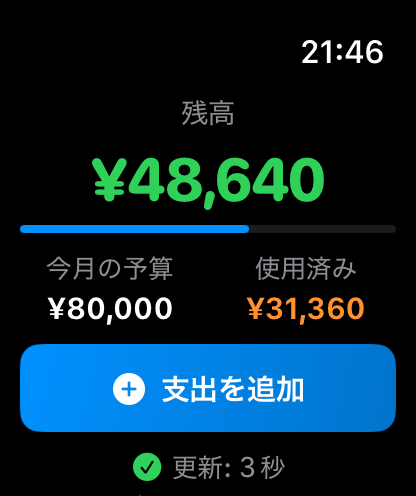
ホーム画面から、あと使える金額を確認。 See what’s left to spend from your Home Screen.
同じApple Accountの端末へ、記録を同期。 Sync records across devices using the same Apple Account.
4つの表示スタイル Four ways to see your budget
水面、数字、ドット、キャンドル。
Water, numbers, dots, or a candle.
残りの予算を、見た目でも実感。
Get a visual feel for what’s left.
使うほど、水位が下がる。 The water level drops as you spend.
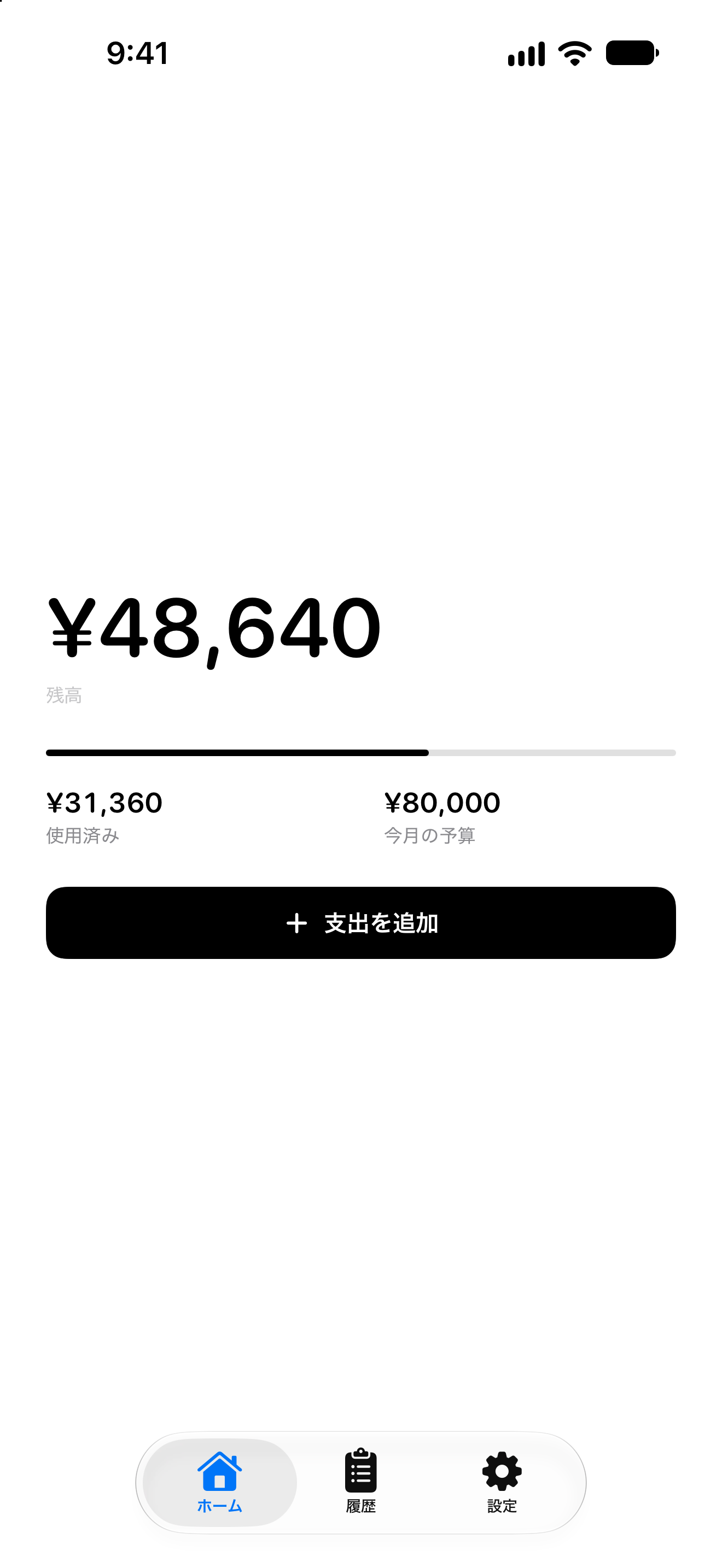
残りの金額を、大きな数字で。 A clear, bold view of your balance.
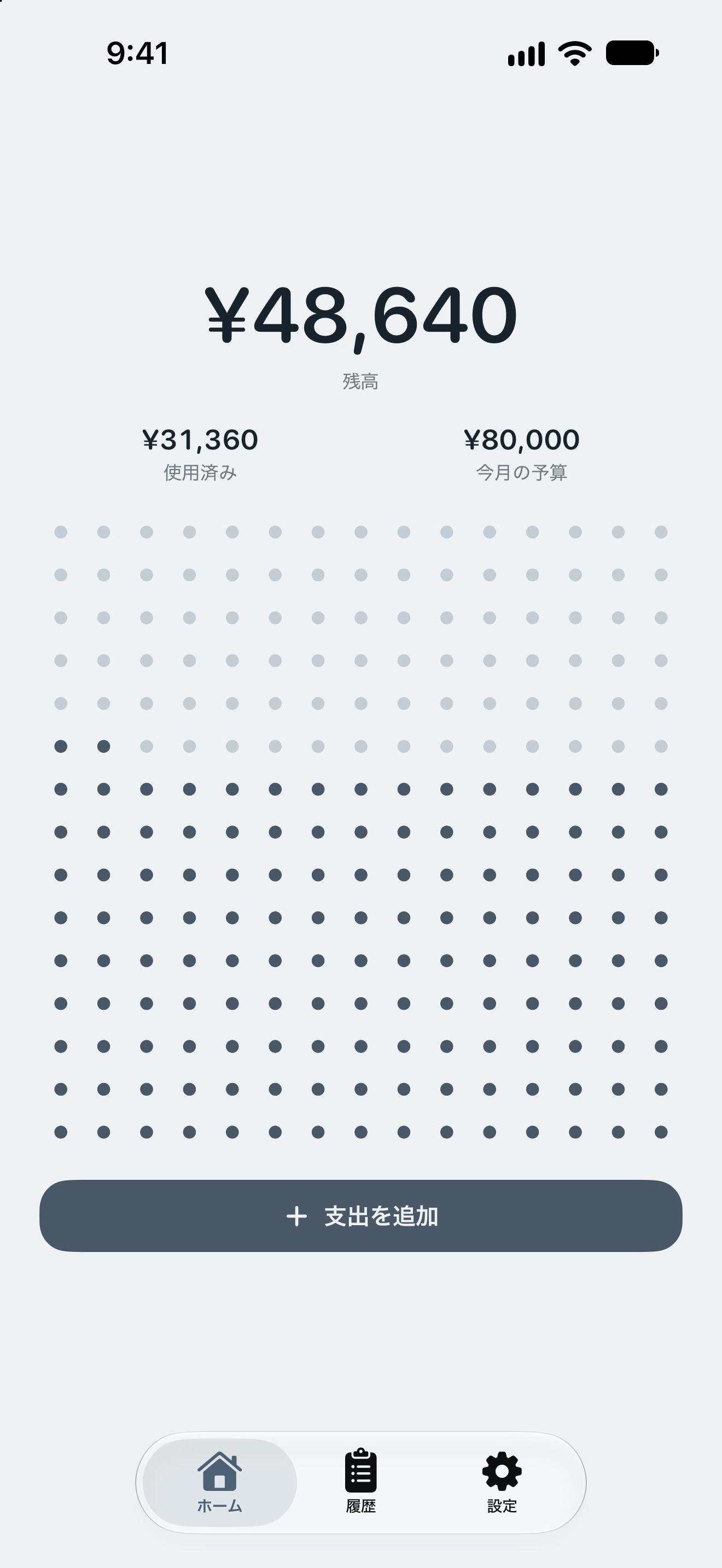
ドットの数で、残りを実感。 See what’s left in the dots.
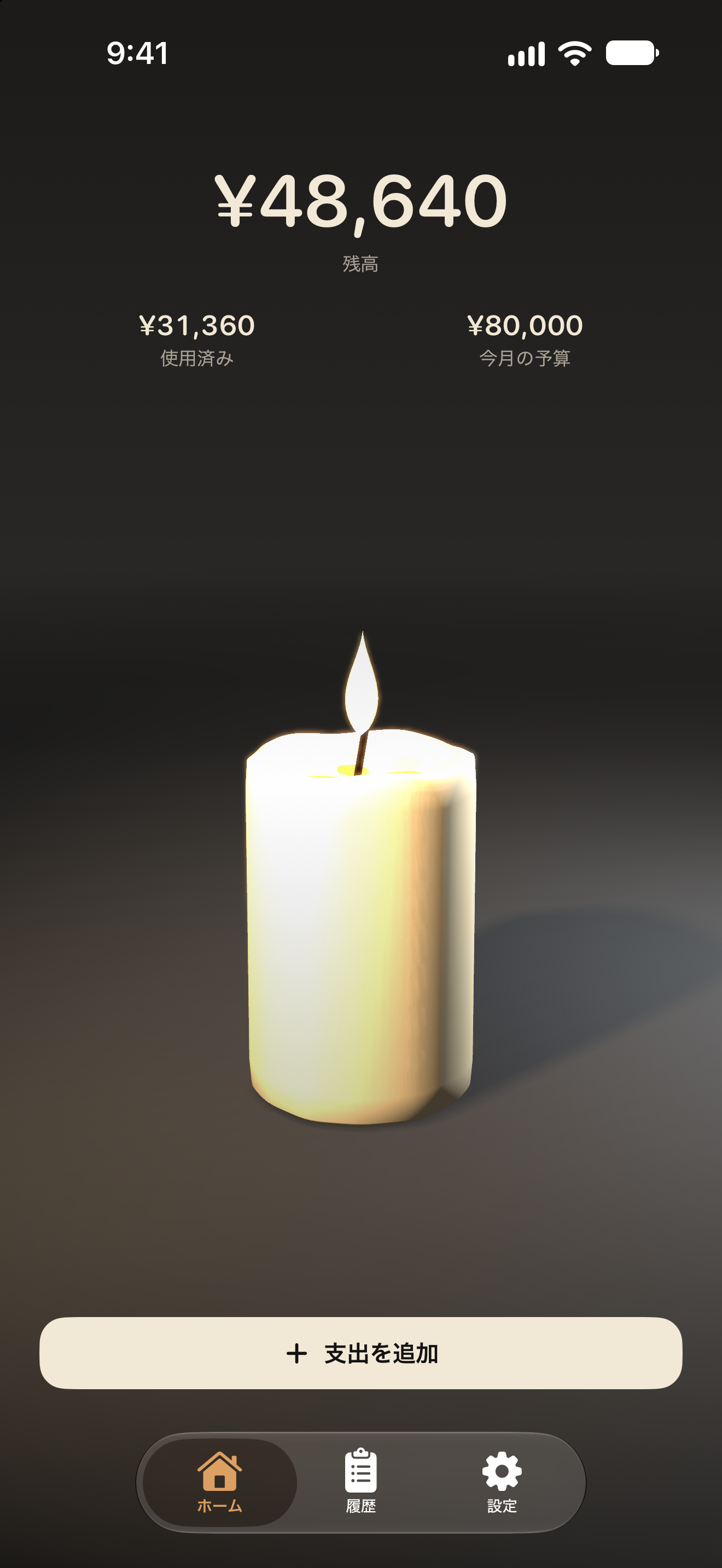
使うほど、ロウソクが短く。 The candle gets shorter as you spend.
掲載画面はXcodeシミュレーターで撮影した実画面です(サンプルデータ)。 Actual screenshots captured in the Xcode Simulator, showing the Japanese interface with sample data.
Saifull Premium
支出の分析やCSV出力も、Premiumで。 Get spending insights and CSV export with Premium.


基本機能は無料。
Core features are free.
Premiumの価格はアプリ内でご確認ください。
Check the app for Premium pricing.
給料日など、生活に合わせた予算期間に。 Align your budget period with payday or your own schedule.
支出の推移や、カテゴリごとの内訳を確認。 Explore spending trends and category breakdowns.
支出の記録を、CSVファイルで書き出し。 Export your expense records as a CSV file.
ドットマトリクス・キャンドルが選べます。 Choose Dot Matrix or Candle.
モノクロ・ゴールドに変更できます。 Switch to Monochrome or Gold.
解決しない場合は、端末名とアプリのバージョンを添えてお知らせください。 Still need help? Email us with your device model and app version.
お問い合わせ Contact usメール: Email: imagefightclub@icloud.com
通貨と月収を設定すると、月収から固定費を引いた金額が使える予算になります。貯金も固定費に含められます。固定費は0円で始めて、あとから設定しても大丈夫です。あとは「支出を追加」から、使った金額を記録します。 Choose your currency and monthly income. Your spending budget is your income minus your fixed costs. You can include savings in fixed costs, or start with zero fixed costs and set them later. Then use Add Expense to record what you spend.
普段の予算は「設定 → 標準予算」で、今月だけの調整は「設定 → 今期間の予算」で変更できます。今期間の変更で過去の予算は変わりません。支出の編集・削除は「履歴」から行えます。 In Settings, use Default Budget for your usual budget, or Current Period Budget to adjust this period only. Changes to the current period do not affect past budgets. You can edit or delete expenses in History.
予算管理、支出の記録、リスト・カレンダーの履歴、カテゴリの追加・お気に入り、Apple Watch入力、水面・ミニマルの表示は無料です。予算期間の指定、分析、CSV出力、追加スタイル・アイコンはPremiumの対象です。 Budgeting, expense entry, list and calendar history, custom and favorite categories, Apple Watch entry, and the Water and Minimal styles are free. Custom budget periods, analysis, CSV export, and extra styles and icons require Premium.
日本円(JPY)・米ドル(USD)・ユーロ(EUR)・英ポンド(GBP)・豪ドル(AUD)・カナダドル(CAD)に対応しています。予算と支出は通貨ごとの財布で管理し、自動換算や合算は行いません。 Saifull supports Japanese yen (JPY), US dollars (USD), euros (EUR), British pounds (GBP), Australian dollars (AUD), and Canadian dollars (CAD). Each currency has a separate wallet for its budget and expenses. Amounts are not converted or combined across currencies.
Watch内に保存し、接続が戻ると同期します。「保存済み・同期待ち」と表示されたら、そのままお待ちください。保存失敗の表示が出た場合は再入力してください。 Your Watch saves the expense and syncs when it reconnects. If it says the entry is saved and waiting to sync, you can leave it as it is. If saving fails, enter the expense again.
同じApple AccountでiCloudにサインインし、通信できることを確認してください。アプリの「設定」で同期状態を確認できます。「同期された予算を確認」と表示された場合は内容を確認してください。ウィジェットの更新には時間がかかることがあります。 Make sure both devices are signed in to iCloud with the same Apple Account and have a connection. Check the sync status in the app’s Settings. If prompted to review a synced budget, check its details. Widgets may take some time to update.
端末内に保存します。iCloudが利用できる場合は、支出・予算・月収・固定費・期間設定・カテゴリを同期します。表示中の通貨やテーマは端末ごとの設定です。 Your data is stored on your device. When iCloud is available, expenses, budgets, monthly income, fixed costs, period settings, and categories are synced. The selected currency and display theme are set separately on each device.
購入時と同じApple Accountで、アプリの購入画面にある「購入を復元」をお試しください。Premiumが使えなくなった場合も支出の記録は残り、表示テーマや予算期間は無料の設定に戻ります。 Sign in with the Apple Account you used for the purchase, then select Restore Purchases on the app’s purchase screen. If Premium becomes unavailable, your expense records remain, and the display theme and budget period return to the free settings.